
With the help of Auto Rules, you can easily speed up and automatize the process of adding and removing products from the M2E Pro Listing. Simply set conditions for products to be automatically added and removed at one of three possible levels: Global, Website, or Category.
✅ The option of Website level appears only after a Store View is specified in the Listing Settings.
How to add the Auto Rules #
1) Navigate to Walmart > Listings.
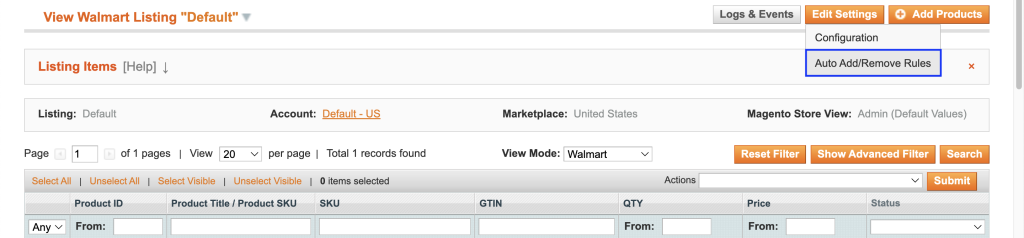
2) Click on the Listing > Edit Settings > Auto Add/Remove Rules.
3) Select the level you want to set for this Listing (Global, Website, Category).
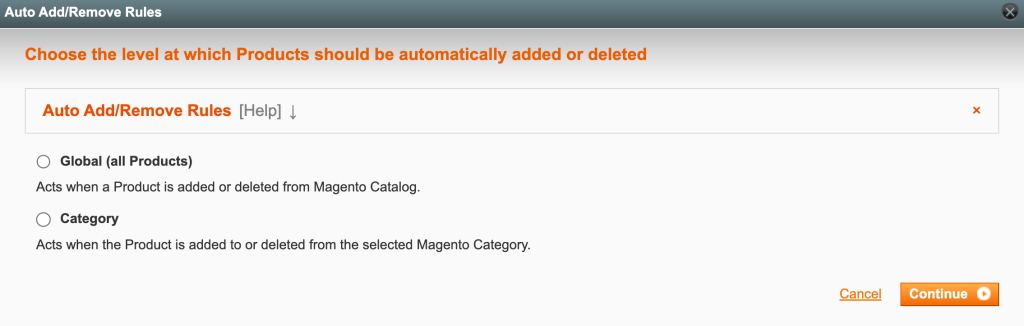
4) Click Continue and set the needed rules.
⚠️ Auto Rules will not affect your existing Magento products, they will apply only to newly added items.
Set levels for Auto Rules #
Auto Rules include actions that define what happens to products related to Global, Website, or Category level. Though actions are alike, they work a bit differently depending on the level. Check out the details on setting actions for each level in the table below:
| Actions | Levels | ||
|---|---|---|---|
| Global | Website | Category | |
| New product is added to | Magento Catalog Includes any new item in Magento | Magento Website Includes all new items in the selected Magento Website | Magento Category Includes all new items in the selected Magento category |
| Add “Not visible individually products” | Defines whether 'Not visible individually' products will be added to Listing or not. | ||
| Product Type | Select the Product Type you want to assign to new products in the Listing. This will allow M2E Pro to submit your newly added products to Walmart. | ||
| Product is deleted from | Magento Catalog Includes any item removed from Magento | Magento Website Includes all items removed from the selected Magento Website | Magento Category Includes all items removed from the selected Magento category |
✅ If you plan to list Multi-Variational items on Channel, you need to add only Parent products to your M2E Pro Listing. Child products will appear after Parent is listed. If your Child products are 'Not Visible Individually' in Magento, set the Add 'Not visible individually products' action to No so they are not added to M2E Listing automatically.
Category level allows the most flexibility for managing automatic product adding and removal. You can add several Magento categories to the same Category level. For this, please follow the steps:
1) Select the Category level and click Add new rule in the opened pop-up.
2) Choose Magento category and tick the necessary category branches.
3) Add the title.
4) Configure actions.
5) Click Save.

⚠️ Please remember that you can select only one Magento category per one category rule.
How to delete the Auto Rules #
- Navigate to Walmart > Listings.
- Click on the Listing > Edit Settings > Auto Add/Remove Rules.
- In the opened window, click Reset Automatic Acton Rule > OK.


