
⚠️ Starting from M2E Pro version 6.69.0, this functionality is no longer supported.
With the shift to Walmart Item Spec 5.0, you have to set Product Types instead of Categories for your listings.
Any product that you list on Walmart must be associated with a relevant Category in Walmart catalog.
In M2E Pro Category Policy, you can select Walmart Category/Subcategory that best suits your product and define the Specifics.
To set up Category Policy, navigate to Walmart > Configuration > Policies, click Add Policy, select Category, then complete the following steps:
Step 1: Specify a Policy title #
Enter a meaningful title for your internal use:
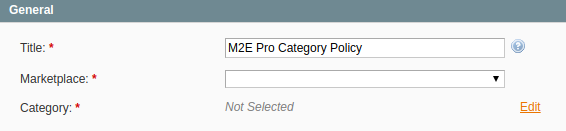
Step 2: Select Walmart marketplace and category #
Select Walmart marketplace to upload the related category list:
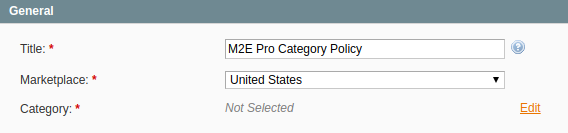
⚠️ Category Policy is created per marketplace and cannot be changed after the Policy is assigned to a Listing Product.
To select the category, click Edit. In the opened pop-up, search for the needed category and Confirm your choice.
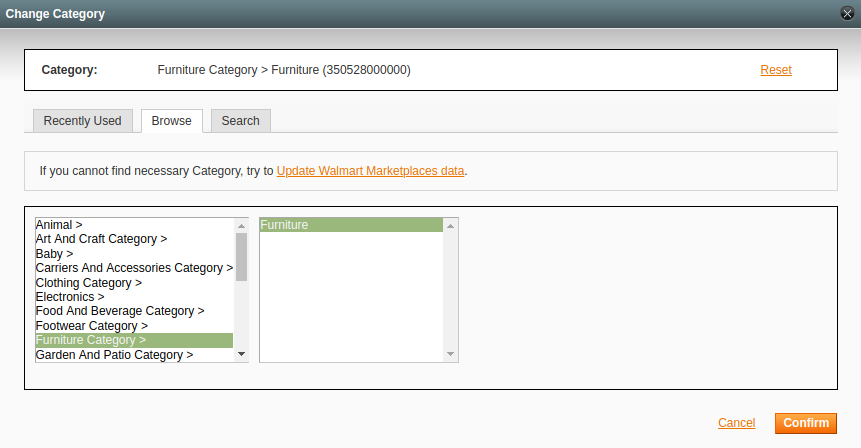
⚠️ Item Specifics vary by Category/Subcategory. It is important to select the correct category to define the relevant Specifics.
Step 3: Complete Item Specifics #
After you select the Walmart category, the Specifics section will appear:

By clicking Add Specifics, you will see a pop-up where you can select the specifics. If you need to narrow down the list of the specifics, you may use the search and filter tools. After you make a selection, click Confirm.

To define a Specific you can use a custom value or select the relevant Magento Attribute.
Click the Plus icon at the top right corner of the Specifics group to add another Specific to that group. Some Item Specifics can be duplicated. It is useful if you need to provide several values for the same Specific. To do it, click the Copy icon. You can delete the records that are no longer needed by clicking the Cross icon.
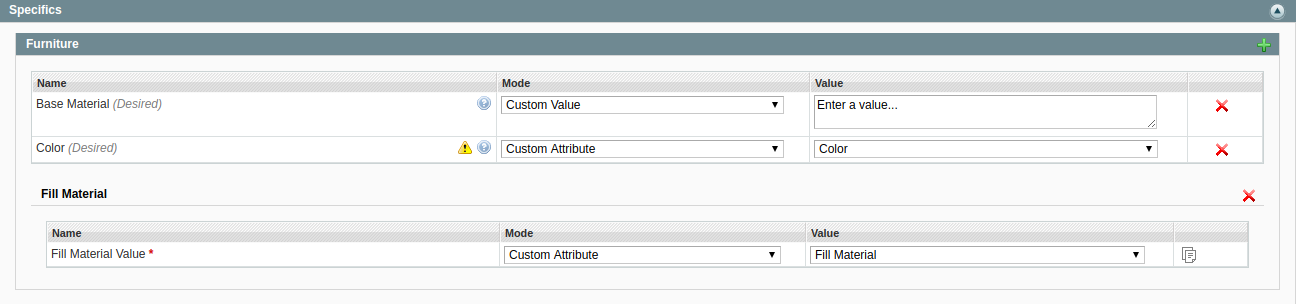
You need to create an individual Category Policy for each Walmart Category you will use. Also, make sure to assign your products to a Category Policy before listing them on Walmart.
✅ Find some Walmart tips on how to select the best category for a product here.


