
M2E Pro provides full order lifecycle management: automatic order import, tracking number synchronization, order cancelation or refund, and order status update. Let's take a closer look at order processing via the Module.
Viewing order details #
The imported Channel orders can be found under Walmart > Sales. The order overview page shows the information about a buyer, purchased items, the total paid amount, current order status, Walmart order ID, and an ID of the corresponding order in Magento, etc.
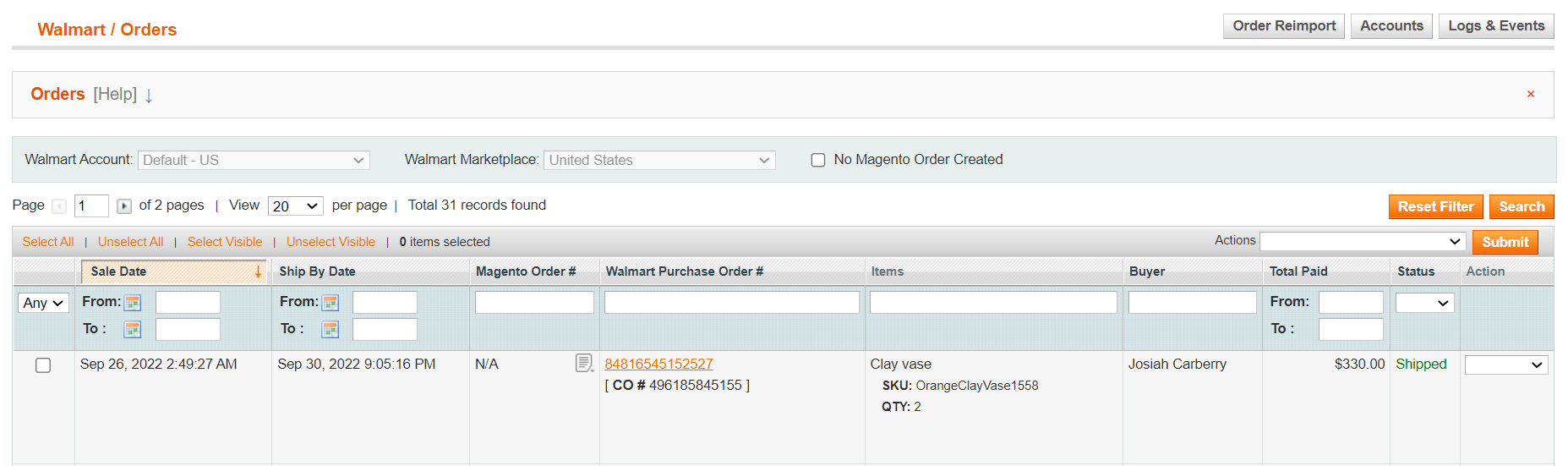
M2E Pro provides automatic order synchronization. Yet, there are cases when you may need to import your sales into M2E Pro manually. For that, click Order Reimport and in the opened pop-up, select the time frame to be processed. Confirm the action by clicking Reimport.

✅ M2E Pro can redirect you to the corresponding Magento Product if you click on the item's SKU in the Orders grid. This is possible only if the ordered item is linked to a Magento Product.
Filter out your Channel sales by an account name or marketplace. Also, you can filter to show Orders that do not have corresponding Magento orders created.

Also, you can filter and sort Walmart Orders by the Sale Date or Ship by Date values, specifying From and To dates:

Then manage the orders in bulk using the Actions menu:

✅ By clicking the Walmart Purchase Order # link, you will be redirected to the Order Details page in M2E Pro.
You can add comments to the imported Walmart orders. Click Add Note to leave a comment. Using the Actions menu, edit or delete your notes as necessary.
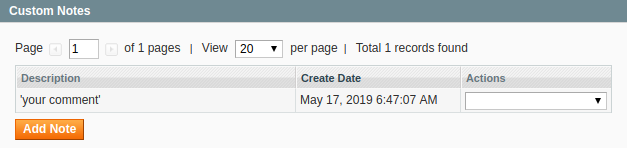
M2E Pro will transfer all your notes to the corresponding Magento order and keep them updated in accordance with your edits:

✅ Walmart Orders with custom notes will be marked with the icon.
Open Walmart order details to review information about a buyer, purchased items and their price and quantity, payment and shipment details, etc. Under the Order Log section, you can track all the actions related to this order during its lifecycle.
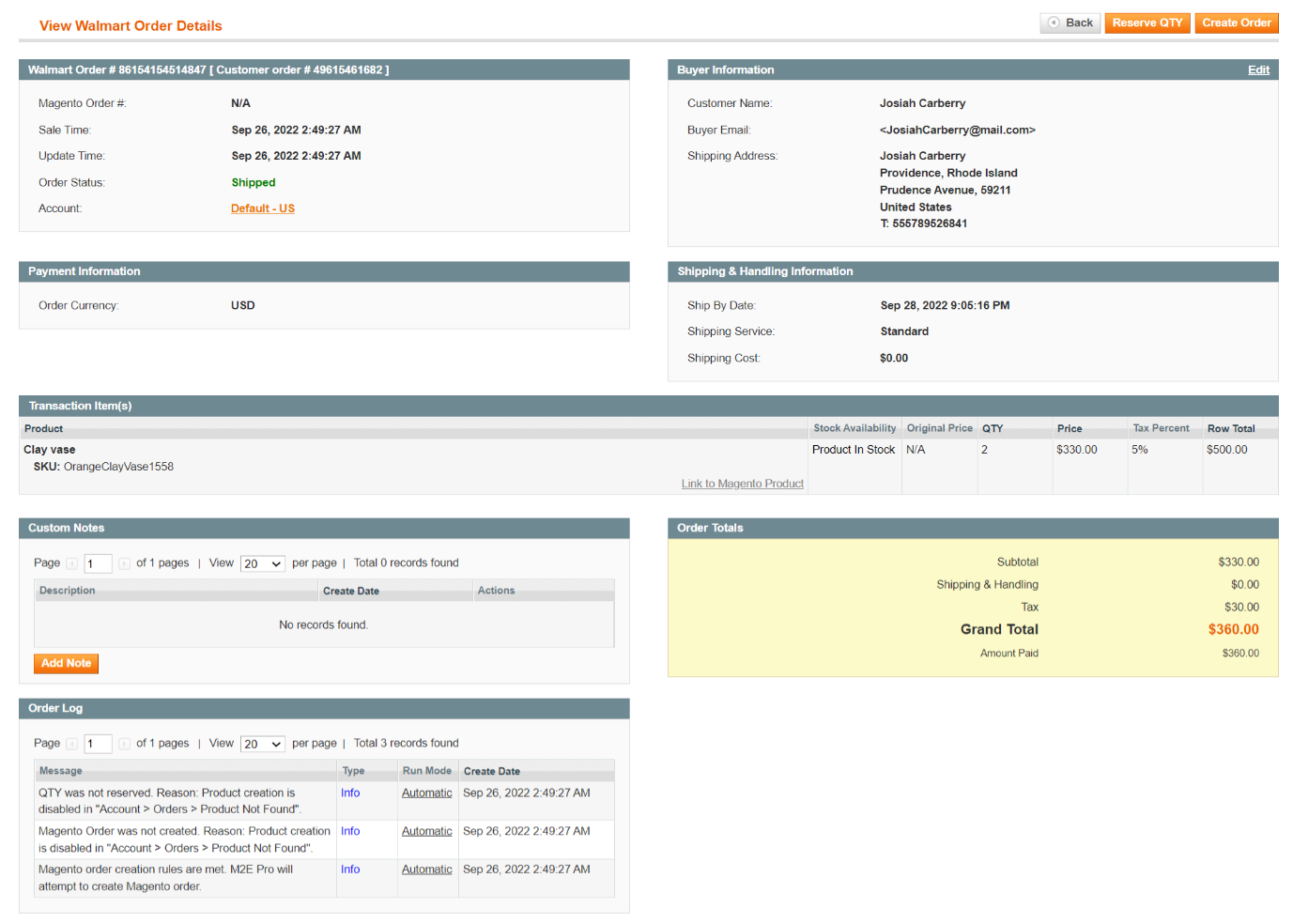
After an automatic Magento order creation is enabled in your Account configurations (Walmart > Configuration > Accounts > selected Account > Orders), M2E Pro will automatically acknowledge your Walmart orders and create the relevant Magento orders.
✅ You can create a Magento order manually before it is created automatically. To do it, click Create Order on the top right of the Walmart order page.
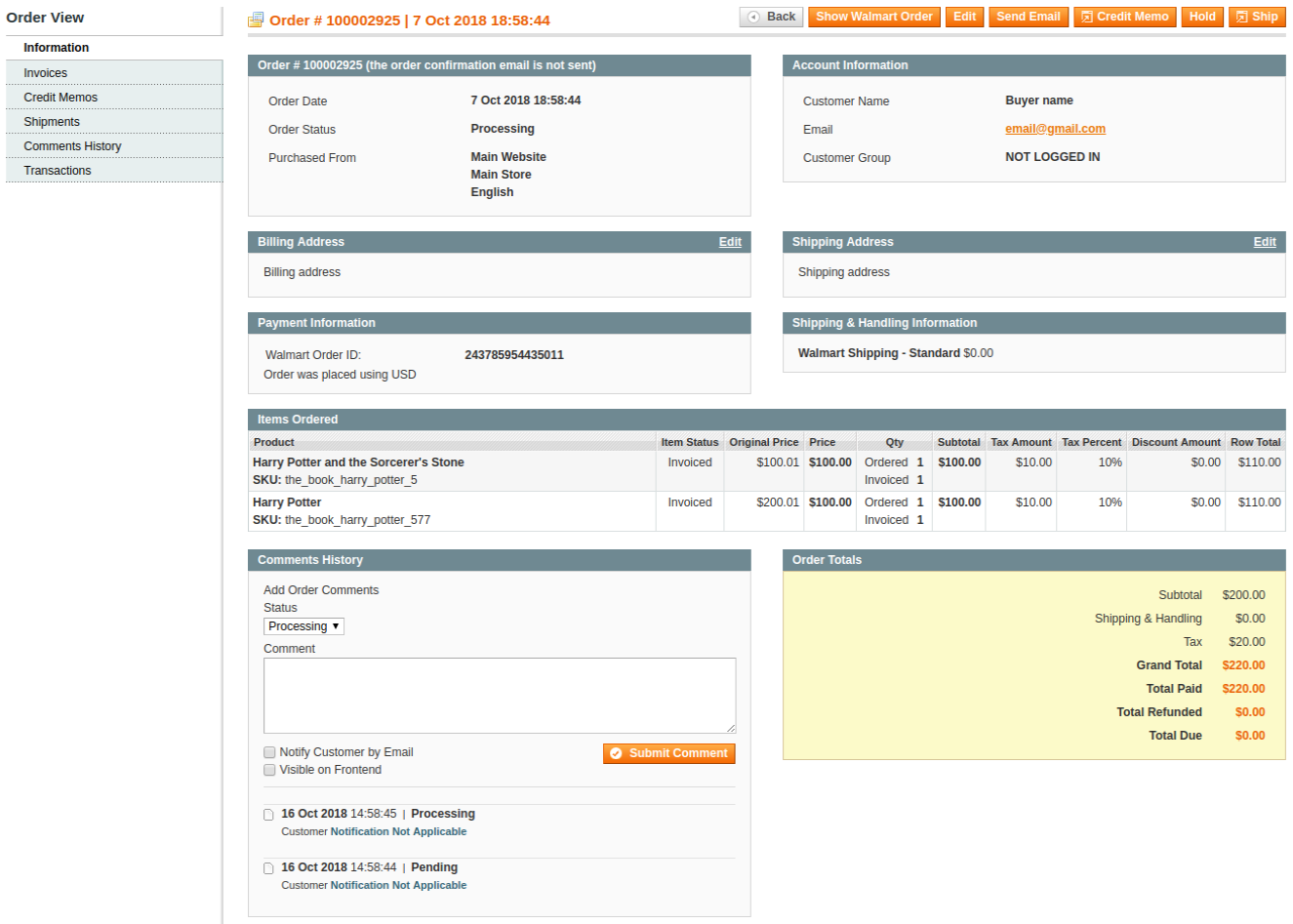
Magento orders created by M2E Pro are similar to those you have in your Magento web store. All the information and functionality stay the same.
To review Magento order details, click on the Magento order number in the Orders grid or inside a corresponding Walmart order. On the Magento order page, you can see the buyer information, billing and shipping address, Walmart Order ID, etc.
✅ Click here to learn about acknowledging Walmart orders via M2E Pro.
Processing orders #
You can manage the orders created by the Module using standard Magento functionality. M2E Pro will automatically submit the changes to the Walmart website and update a corresponding Walmart order status accordingly.
For example, click Ship to complete a Shipment form and synchronize tracking information to the Channel. You may use Magento Credit Memo to cancel or refund a corresponding Walmart order or individual items in an order.

In the Orders grid, you may see the following order statuses:
- Created - Walmart order is just imported to M2E Pro and not yet acknowledged.
- Unshipped - Walmart order is already acknowledged and not yet shipped.
- Partially Shipped - only part of an order is shipped, the rest is either not shipped yet or canceled. For example, a customer ordered 2 items but requested one to be canceled. Shipment must be created for one item and a Credit Memo for the other one.
✅ You can set M2E Pro to automatically create an Invoice for Magento order once a corresponding Walmart order is Unshipped or Partially Shipped. The feature can be enabled in your account configuration.
- Shipped - a Shipment is created for a corresponding Magento order, or a Walmart order is marked as Shipped directly on the Channel.
✅ M2E Pro will automatically create a Shipment for Magento order after a corresponding Walmart order becomes Shipped. You can enable this feature in account configuration.
⚠️ If a Walmart order is refunded, its status remains Shipped.
- Canceled - Walmart order is canceled.
✅ You can refer to Walmart Order and Refund guides for more information.


