
With M2E Multichannel Connect, you can list products from your Magento 1 store on Temu and manage your sales in one place. The integration keeps your inventory, product details, and order information synchronized between Magento and Temu in real-time.
Follow the instructions below to complete the setup.
Requirements before you start #
Before connecting your accounts, make sure that:
- The M2E Multichannel Connect extension is installed in your Magento 1 store.
- You have registered a Temu seller account.
Step 1. Allow access permissions #
After installing the extension, review and approve access permissions in your Magento 1 admin panel. Click Confirm to authorize M2E to securely exchange product, inventory, and order data between your Magento store and Temu.

Step 2. Create or sign in to your M2E account #
If you’re new to M2E, sign up through M2E Accounts using your business contact details.
Already registered? Sign in using your existing M2E credentials.

Step 3. Connect your Temu seller account #
In your M2E Dashboard, click Connect Marketplace Account. Then, confirm access to your Temu Seller Center account when prompted.
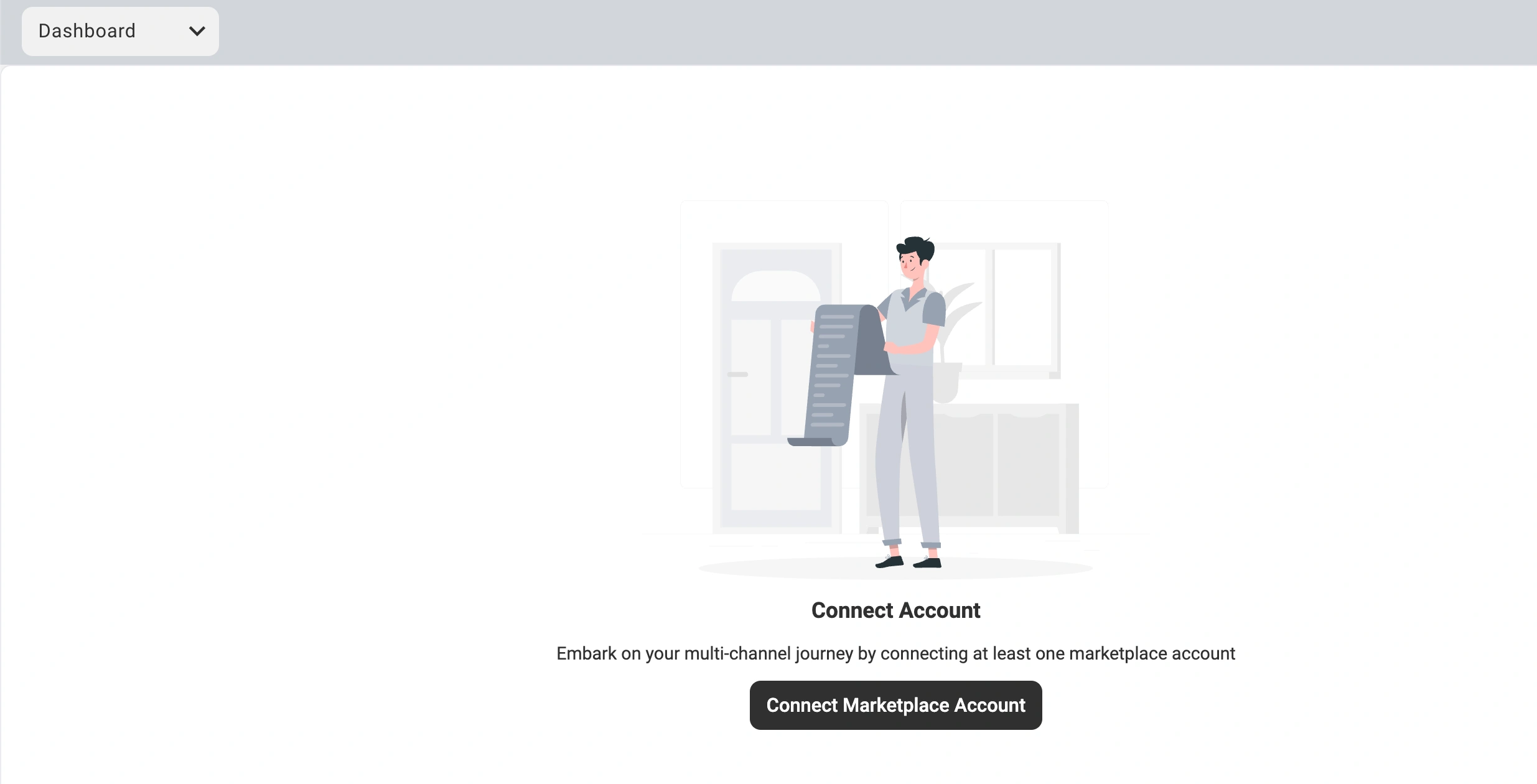
Once authorization is complete, a Setup Guide will appear to help you finish the configuration.
Step 4. Finalize integration via Setup Guide #
Follow the prompts in the guide to enable synchronization and start listing products:

- Link products: Match your existing Temu listings with the corresponding Magento products.
- Turn on inventory sync: Keep Temu listings automatically updated with your Magento product information and stock levels.
- Import orders: Allow orders placed on Temu to be imported into your Magento 1 store.
- Create new listings: Publish your Magento products to the Temu marketplace.
Your Magento 1 store is now integrated with Temu. Listings are linked, synchronization is active, and new orders are automatically imported into Magento.
M2E Multichannel Connect runs the sync and order management in the background, so you can focus on expanding your reach and increasing sales on the Temu marketplace.


