
⚠️ Order Synchronization is the primary task of M2E Pro. It cannot be disabled. Yet, you can switch off Magento Order creation if you do not want to associate your Channel Sales with Magento.
Product Is Listed By M2E Pro #

- Create Order in Magento - specify whether Magento Order has to be created after the Item listed by M2E Pro is purchased on the Channel.
- Store View Source - select the Store View under which Magento Order should be created. You can use the Store View from the related M2E Pro Listing or select the required Store View manually.
✅ M2E Pro will initiate an automatic retry to create a Magento Order if the initial attempt failed. There will be three recurring attempts launched at regular time intervals.
M2E Pro may try to create Magento Order again if the corresponding Channel Order is updated with some changes.
⚠️ The mechanism of automatic retries does not cause double Orders created in Magento for the same Channel Sales imported through M2E Pro.
Product Is Listed By Any Other Software #

- Create Order in Magento - specify whether Magento Order has to be created after the Item listed by a 3rd party software is purchased on the Channel.
- Store View - select the Store View under which Magento Order should be created.
- Product Not Found - choose what should happen if there is a Channel item that doesn’t exist in your Magento Catalog:
- Do Not Create an Order - Magento Order won’t be created for this Channel item.
- Create Product and Order - both Magento Product and Order will be created for this Channel item.
ℹ️ M2E Pro will create only Simple Magento Products. For Channel variational items it will create a Simple Product for each variation.
✅ The Create Product and Order option is not meant for filling your Magwnto Catalog. Chennel data is insufficient for creating the full-fledged products. Normally, M2E Pro relies on Magento as a data source.
You can this option only as a workaround when a few items are missing in the Magento Catalog so your orders can be processed with no interruptions for users.
- Product Tax Class - Tax Class that will be used for Products created by M2E Pro.
✅ M2E Pro will initiate an automatic retry to create a Magento Order if the initial attempt failed. There will be three recurring attempts launched at regular time intervals.
M2E Pro may try to create Magento Order again if the corresponding Channel Order is updated with some changes.
⚠️ The mechanism of automatic retries does not cause double Orders created in Magento for the same Channel Sales imported through M2E Pro.
Magento Order Number #
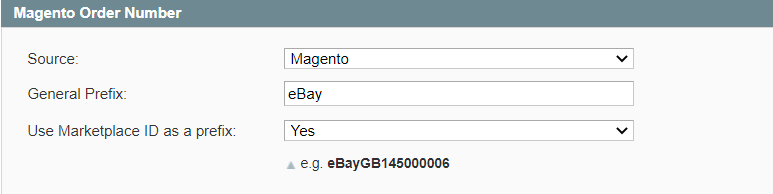
- Source - specify the way in which the Magento Order number should be generated:
- Magento - Magento Order number will be generated based on your Magento Settings;
- eBay - Magento Order number will be similar to the eBay Order number.
- General Prefix - allows you to add a certain prefix to the Magento Order number.
- Use Marketplace ID as a prefix - allows you to mark orders with Marketplace IDs automatically.
Shipping information #
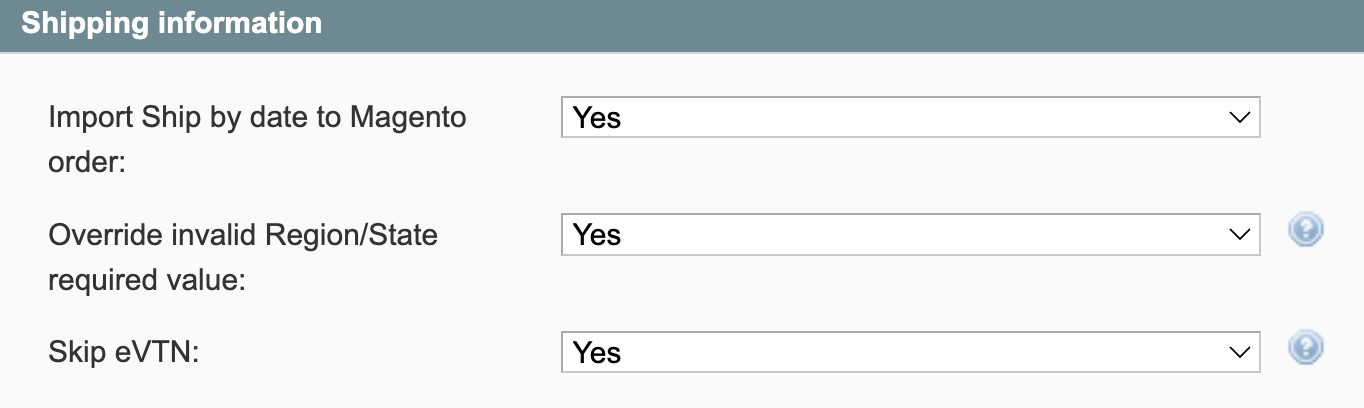
- Import Ship by date to Magento order - decide whether ‘Ship By Date’ info must be imported to the Magento orders.
ℹ️ If set to No, Ship by date info won’t be reflected in the Shipping & Handling information section of the Magento orders.
- Override invalid Region/State required value - set to Yes to automatically replace the invalid Region/State value with an alternative one for the specified country.
✅ Keep the option enabled to make sure Magento Orders are created even if a buyer made a mistake when entering their shipping information.
- Skip eVTN - set to Yes if you want to exclude eVTN from your Magento orders.
Customer Settings #
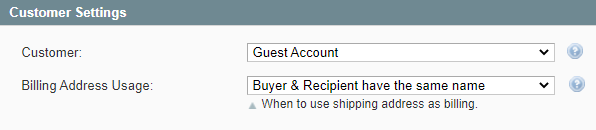
Specify how M2E Pro should manage Magento Customers during Magento Order creation.
- Customer – select the Customer for which Magento Order will be created:
- Guest Account – the system does not require a new customer account to be created. The default guest account will be used instead.
⚠️ To use this option, the 'Magento Guest Checkout' option must be enabled under System > Configuration > Sales > Checkout.

✅ The Customer ID can be found under Customers > Manage Customers.
- Create New – a new customer will be created in Magento.

- Associate to Website – select to which website the customer should be associated.
- Customer Group – select which customer group the customer should be assigned.
- Send Emails When The Following Is Created – allows notifying the customer when Magento Order and/or Invoice are created.
⚠️ An email address is a unique customer identifier. The new customer will not be created if the particular email already exists in Magento. In this latter case, the system will associate the order with the customer created under this email address.
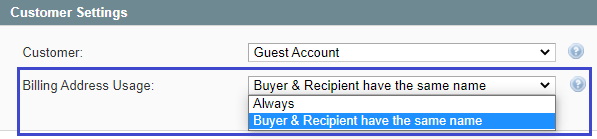
Billing Address Usage – select the appropriate option of how to handle the billing address for the imported Customer:
- Always - the shipping address is always used as the billing address.
- Buyer & Recipient have the same name - the shipping address is used as the billing address only when Buyer's name and Recipient's name are the same. Otherwise, billing address fields will be empty and this message will appear in the city field: "eBay does not supply complete billing Buyer information".
Order Creation Rules #
You can automatically create Magento orders based on two eBay order statuses - when checkout is completed and the payment is received.
- Checkout Is Completed – use the option to create a Magento order after a buyer completes checkout on eBay.
- Payment Is Received – use the option to create a Magento order only after a buyer completes checkout and makes a payment on eBay.

Reserve QTY #
Quantity reservation feature allows holding the Product stock until Magento Order is created or the reservation period expires.
Please specify how long the Item Quantity should be set aside the stock: from 1 to 14 days.

⚠️ QTY Reservation is required if Magento Order creation is enabled. The '1 Day' term is provided by default.
M2E Pro will reserve the Item Quantity only if both 'Manage Stock' and 'Decrease Stock When Order is Placed' options are enabled in your Magento under System > Configurations > Catalog > Inventory:
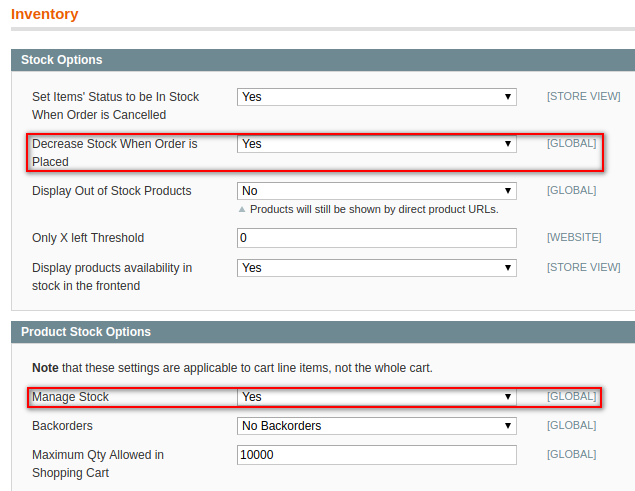
The reserved Item quantity will be released prior to creating a Magento Order or canceled after the reservation term has expired.
✅ If an order is canceled directly on the Channel, the reserved Item quantity will be released automatically.
Refund & Cancellation #
Set this option to Yes if you would like to cancel or refund eBay orders via M2E Pro and get their statuses automatically updated on the Channel.

✅ Check out this article to learn about order cancellation and refund using M2E Pro.
Order Tax Settings #
Select which Tax settings should be applied to Magento Order:

- eBay - the related eBay Tax settings will be used.
- Magento - the related Magento Tax settings will be used.
- eBay & Magento - eBay Tax settings will be used if specified. Otherwise, Magento Tax settings will be applied.
- None - neither eBay nor Magento Tax settings will be used.
Order Status Mapping #
Set the correspondence between eBay and Magento order statuses. The status of your Magento order will be updated based on these settings.
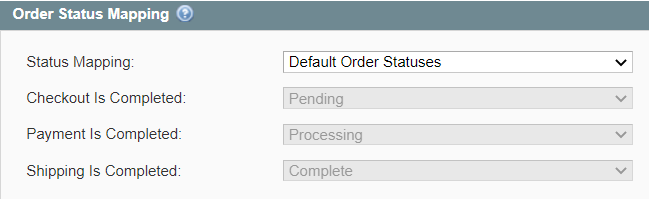
You can either use the default order statuses or customize them according to your needs.
If you choose the default option, the Magento order will have a predefined status whenever checkout/payment/shipping is completed on eBay. For example, once the order is “Shipped” on eBay, its status in Magento will change to “Complete”.

In case you do not want the order statuses on eBay and Magento to be fully consistent for some reason, set custom order status mapping. Depending on the status of your eBay order, you can match it manually to any of the available Magento order statuses from the drop-down menu.


