
M2E Pro provides full order management: automatic order import, tracking number synchronization, order cancelation or refund, order status update. Let's take a closer look at order processing via the Module.
Viewing Order Details #
The primary task of M2E Pro is to maintain constant order synchronization. Once a customer places an Order, it will be imported to the Module.
All imported Amazon Orders can be found under Amazon > Sales. The order overview page shows the information about a buyer, purchased items, the total paid amount, current order status, Amazon Order ID, and an ID of the corresponding Magento Order.

Filters are available to show orders for a specific Amazon Marketplace or Amazon Account only. You can also filter to show Orders that do not have corresponding Magento orders created or the Orders that have no Invoice/Credit Memo sent for them. To do it, simply tick the box next to the appropriate option:

⚠️ Only the Orders placed past the date you linked your Amazon Account to Module are imported to M2E Pro.
Channel Orders created more than 180 days ago are archived. To get them, contact M2E Pro Support.
✅ M2E Pro can redirect you to the corresponding Magento Product if you click on the item's SKU in the Orders grid. This is possible only if the ordered item is linked to a Magento Product.
Amazon Order Details #
If you click on the Amazon Order number in a grid, you will be able to view the details of this order.

✅ To view the Amazon Order page in your Seller Central, click on the arrow icon in the Amazon Order # column.
On the Amazon Order Details page, you can review information about a buyer, purchased items, their price and quantity, payment and shipment details, etc.
Under the Transaction Item(s) section, you can perform linking/unlinking of the Amazon Item to the related Magento Product. Find more details here.
Under the Order Log section, you can track all the actions related to this order.
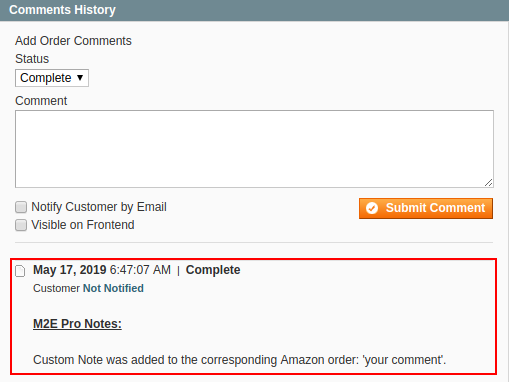
In the Comments History block, you can add the comments to the imported Amazon orders. Click Add Note to leave a comment. Using the Actions menu, edit or delete your notes as necessary:

M2E Pro will transfer all your notes to the corresponding Magento order and keep them updated according to your edits:
✅ Amazon Orders with custom notes will be marked with the icon.
Magento Order Details #
If you click on a Magento Order number in a grid, you will be able to view details of a Magento Order created for the selected Amazon Order.
✅ If an automatic Magento Order creation is disabled, you can create the Order manually via the Create Order button in the top right corner of the page.
On the Magento Order Details page, you can review information about the buyer, billing and shipping addresses, payment, shipping and handling details, purchased items, their price and quantity, comments history and orders total.
⚠️ M2E Pro automatically creates a Magento Order and updates its status based on your settings under Amazon > Configuration > Accounts > Account Configuration > Orders.
Managing Orders #
To manage imported Channel Orders manually, use the Action(s) menu.
Individual actions (applicable to a single order):
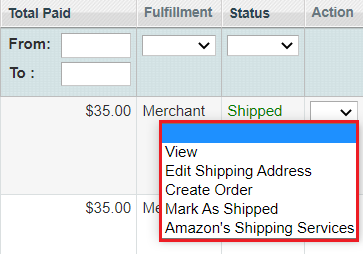
- View - displays the Order details.
- Edit Shipping Address - allows making changes to the shipping address.
- Create Order - creates Magento order for the selected Channel order.
- Mark as Shipped - changes Order status to Shipped.
- Amazon’s Shipping Services allows setting up Amazon Shipping Services for the Unshipped orders. Find more details here.
Mass actions (applicable to multiple orders at once):
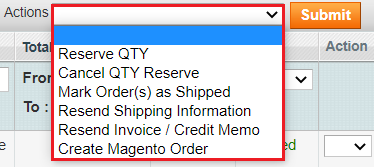
- Reserve QTY - reserves ordered quantity of product.
- Cancel QTY Reserve - cancels quantity reservation.
- Mark Order(s) as Shipped - changes Order(s) status to Shipped.
- Resend Shipping Information - sends shipping information again.
- Resend Invoice/Credit Memo - sends invoices/credit memo again.
- Create Magento Order - creates Magento order(s) for the selected Channel order(s).
On the Orders page, you can also:
- Filter and sort Amazon Orders, for example, by their Status

Or filter and sort Amazon Orders by the Sale Date, Ship By Date, or Deliver By Date values, specifying From and To dates

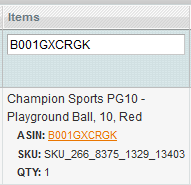
- Search by the particular parameter, for example, by Amazon Item ASIN/ISBN
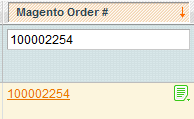
Or by Magento Order Number
- View logs and custom notes for an Order

✅ M2E Pro provides automatic order synchronization. Yet, there are cases when you may need to import your sales into M2E Pro manually. For that, click Order Reimport. In the opened pop-up, select the time frame to be processed. Confirm the action by clicking Reimport.
Watch this video to learn when this option can be helpful and how to set it up.


