
In this tutorial, you will learn how to set up a Multi-SKU product in M2E Pro Listing to correctly associate product variations with the Walmart catalog. You will need to define the correspondence between your Magento variational options and Walmart ones.
⚠️ Magento Simple with Custom Options, Bundle and Downloadable with Separated Links Products cannot be submitted to the Walmart marketplace. These types of Magento Variational Products contradict Walmart Variant Group parameters.
Only Product Variations created based on Magento Configurable or Grouped Product types can be sold on the Walmart website.
Step 1: Select a Walmart Variant Attribute #
After you add Magento Variational Product to M2E Pro Listing, you will see the Manage Variations link next to the Listing Product. Please click Manage Variations to open the configuration pop-up.

Under the Settings tab, click Set Attributes:

You need to select a Walmart Variant Attribute by which your product will vary on the website. You can set more than one Variant Attribute for variational products that vary by multiple attributes. Please Confirm your choice to proceed.
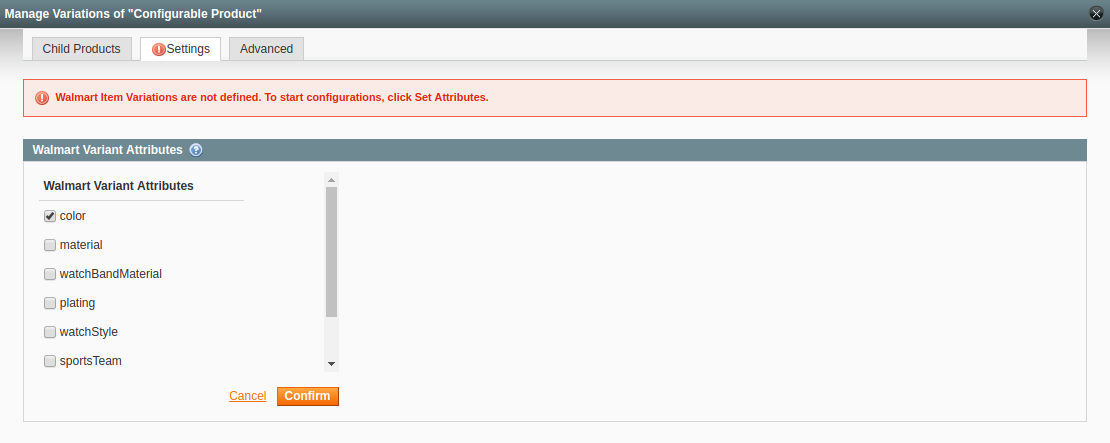
⚠️ The list of available Walmart Variant Attributes is determined by Walmart Category assigned to your product.
Step 2: Match Magento Variational Attribute with Walmart Variant Attribute #
At this step, the correspondence between Magento and Walmart Attributes must be set. The attributes will be matched automatically if your product varies by a single variational option. Otherwise, you will need to associate the attributes manually.
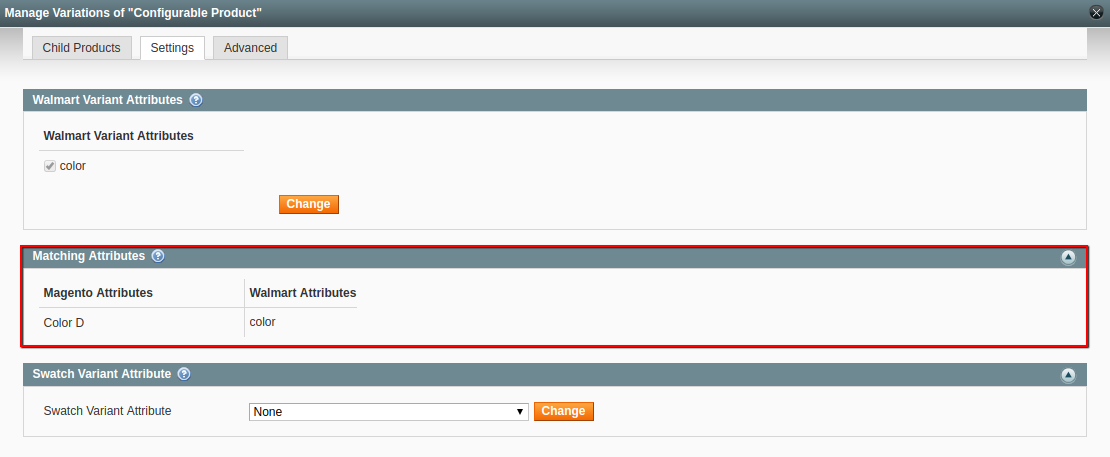
⚠️ Matching of Variational Attributes is required. Otherwise, the product cannot be listed on the Channel.
⚠️ If you change the Variational Attribute or Variational Option names in Magento, you will have to match Magento Variational Attribute(s) with Walmart Variant Attribute(s) again.
After the Attributes are matched, M2E Pro will automatically create Walmart Item Variations based on your Magento Product Variations. Switch to the Child Products tab to review the product variations:

⚠️ If you have different Websites created in your Magento, make sure that Magento Child Products are checked in the Website relevant to your M2E Pro Listing. Otherwise, the product variations will not be displayed under the Child Products tab.
Step 3: Define a Swatch Variant Attribute #
You may select a Swatch Variant Attribute by which the Swatch Images will be shown on your Walmart Item page. The Swatch Image refers to the image that shows a selected product variation on the Walmart website.
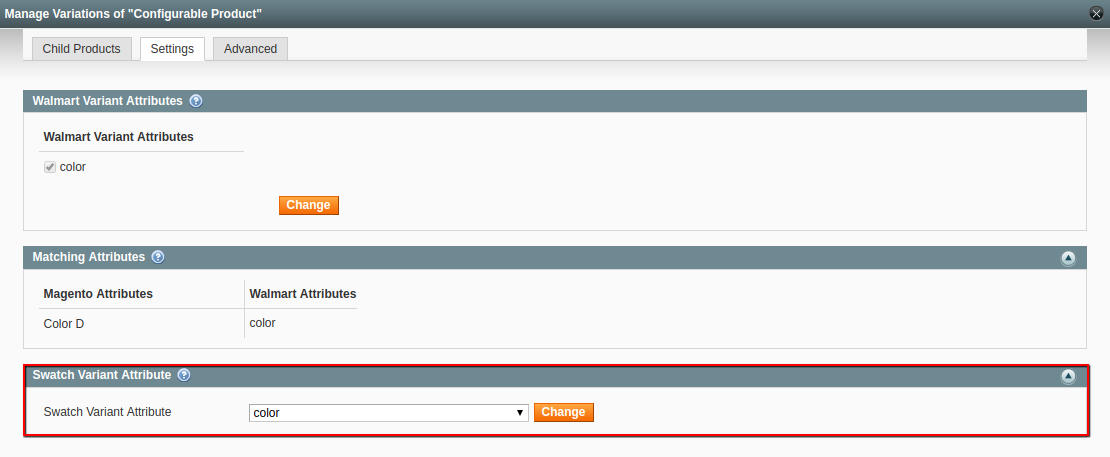
For example, if you specify to change the image by color, a buyer will see the relevant product image by switching the options on Walmart Item page:
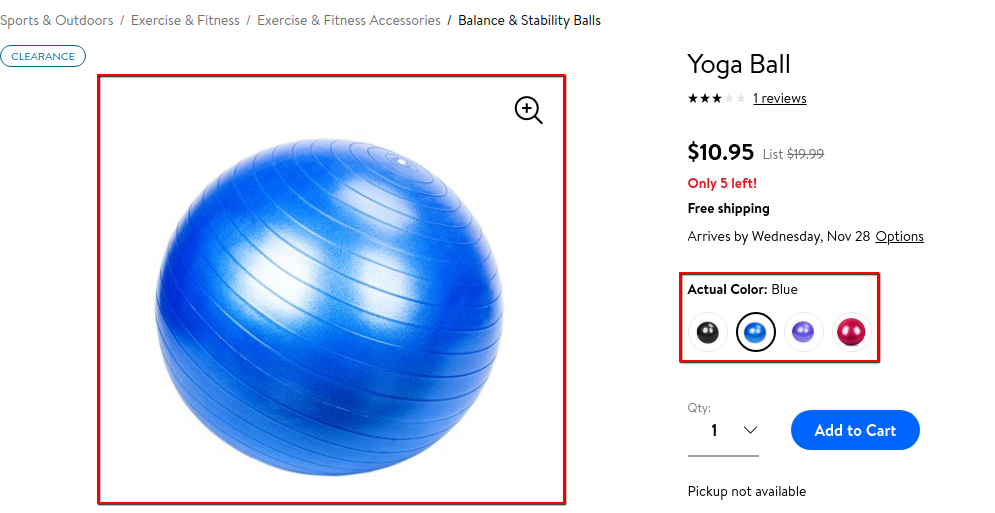
Step 4: Complete advanced settings (optional) #
M2E Pro can remember the correspondence between Magento Variational Attributes/Options and Walmart Variant Attributes/Options that you define. This allows you to use the configured associations in the future automatically.
For example, if you previously matched Magento Variational Attribute color name with Walmart Variant Attribute color for one product, this attribute correspondence will be suggested you as a default next time. Yet, you will be able to adjust these settings.
Under the Advanced tab, you can set your preferences:
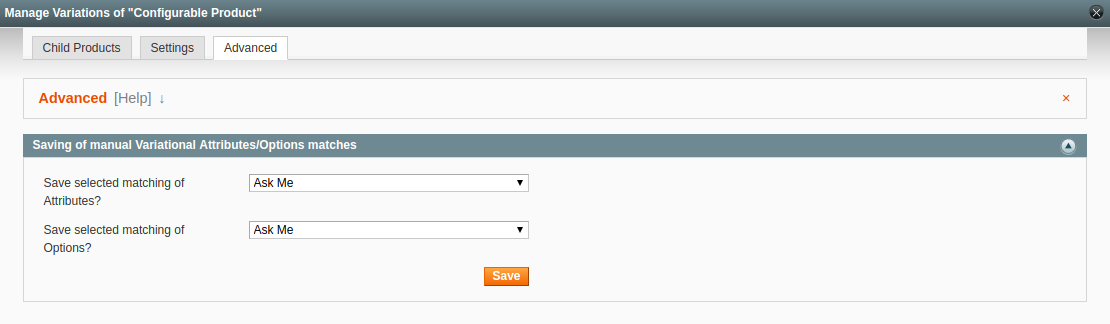
All remembered associations will be displayed under the Saved Attributes and Options section:
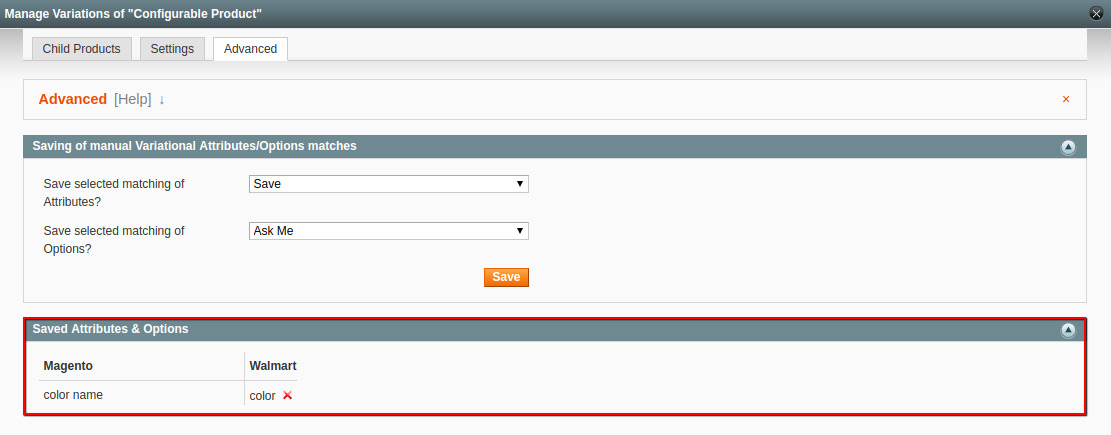
⚠️ The remembered associations is a global-level option and available for Magento Variational Products in both Walmart and Amazon integrations.
Step 5: Manage product variations #
After you complete the settings, M2E Pro will process your product variations based on the Sync Rules.
In the Listing grid, you may check the current status of your variational product:
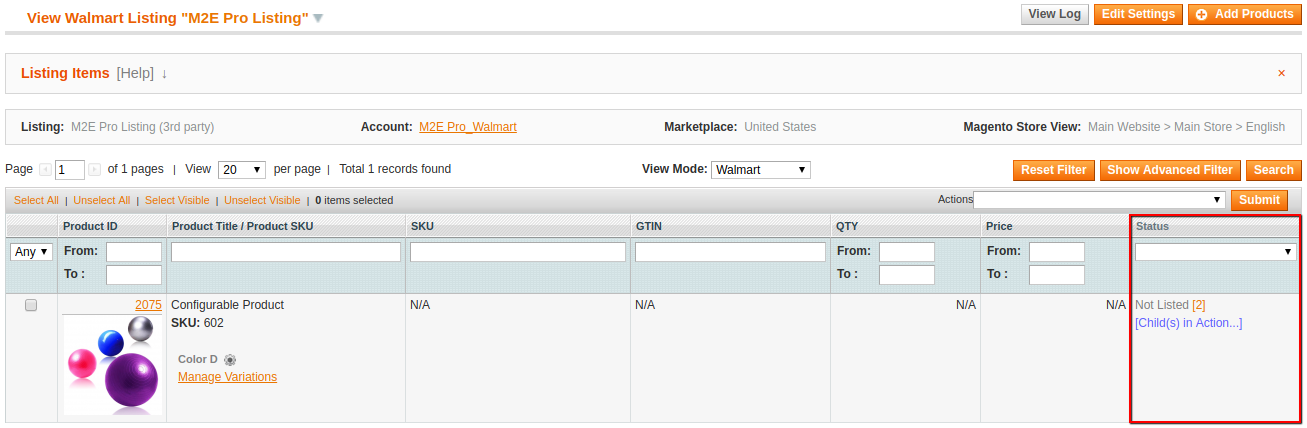
Click Manage Variations to manage each product variation individually.
Selling Magento Variational Product with Selected Variation #
Before the product is listed on the Channel, you may choose whether to sell Magento Product Variations as Walmart Variant Group or as Walmart Individual Items. To switch to the Individual mode, please click Gear icon:
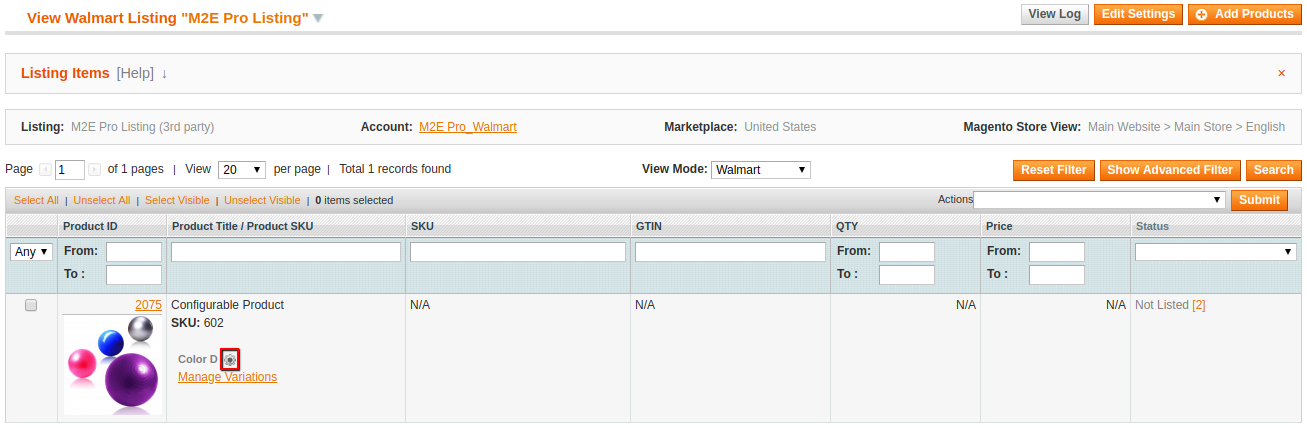
You can select which product variations you want to sell as individual items:
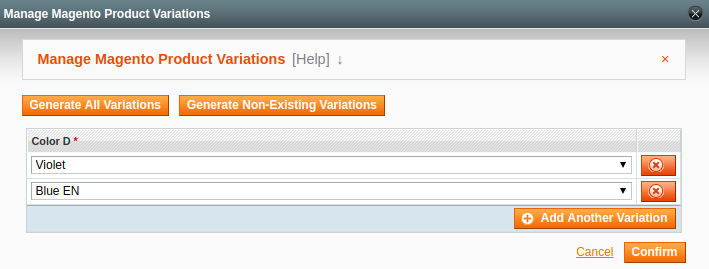
Please click Generate All Variations to create all possible unique combinations for this Magento Variational Product. By clicking Generate Non-Existing Variations you may generate only those combinations that are not yet presented in this Listing.
After you confirm your choice, the related product variations will be shown as individual Listing Products in the Listing grid. From this point on, you will be able to manage them as Simple Magento Products.
⚠️ In your Walmart Seller Center, each listed Product Variation will be displayed as a separate item. Walmart will organize Item Variations in a Variant Group prior to showing them to buyers.
Please be advised that M2E Pro does not affect Walmart decision on how to organize Item Variations in a Variant Group. Variations that you defined in a single Magento Variational Product not necessarily will be grouped together on Walmart.


