Once the eBay order is imported to M2E Pro, the corresponding Magento Order can be created based on the configured Account Settings.
The way tax is calculated for the Magento Order depends on the selected Tax Source and Magento Tax Settings.
See the examples below to find out the logic of tax calculation with different settings in Magento and M2E Pro.
Example 1. Tax Source is set to None #
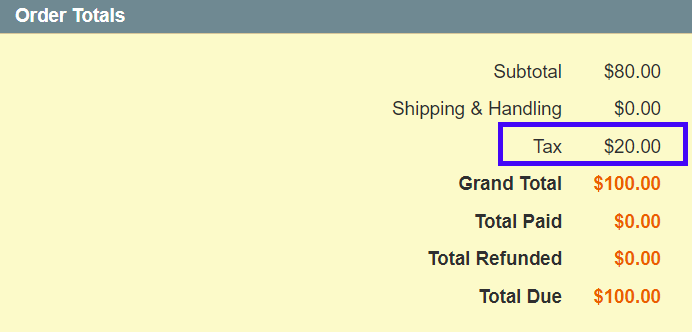
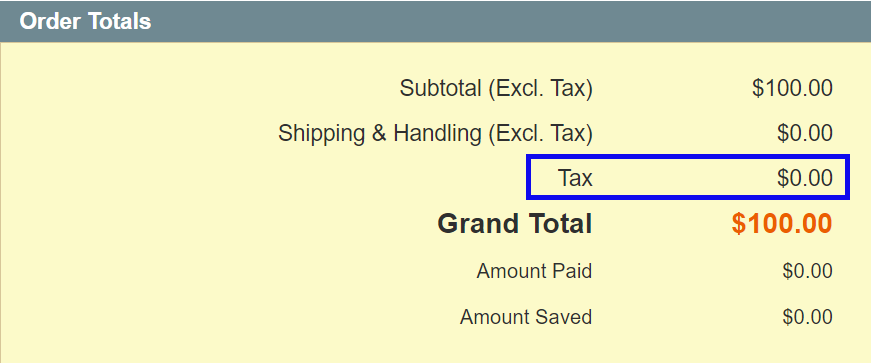
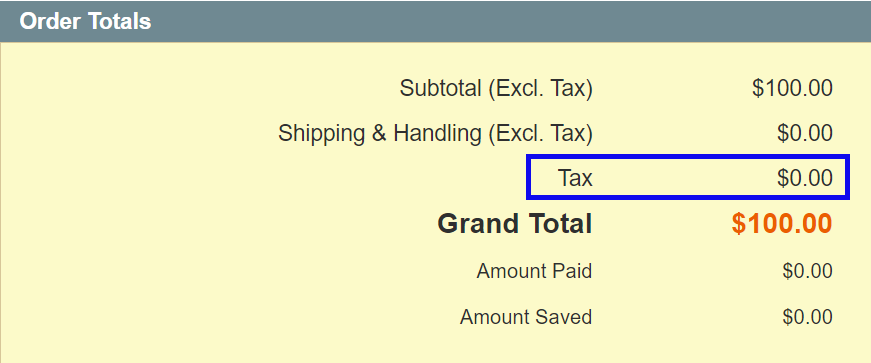
If the Tax source is set to None both eBay and Magento Tax settings will be ignored. As shown in the screenshot, the Magento Order will contain no tax amount.
Magento Order Totals

Example 2. Tax Source is set to eBay #
When you select eBay as a Tax Source, the tax in Magento Order will be calculated according to eBay tax settings.
✅ M2E Pro Selling Policy allows you to apply VAT to your eBay items and choose whether it should be included in the item's final price or added on top.
- Tax is included in the item final price
Let's see how the calculation works when you apply 20% tax to the eBay item with no change to its final price.
This way, the Magento Product of $100 will be listed on eBay at the same price. It already contains a 20% tax amount.
When the eBay order with a 20% tax is imported to M2E Pro, the Magento Order with the 20% tax amount will be created.
eBay Order Totals
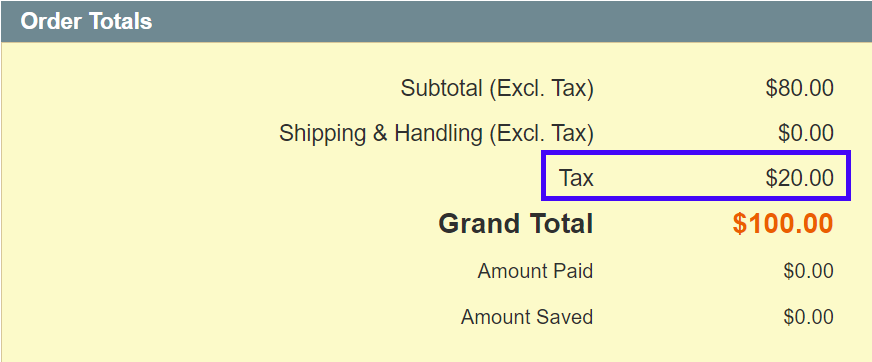
Magento Order Totals
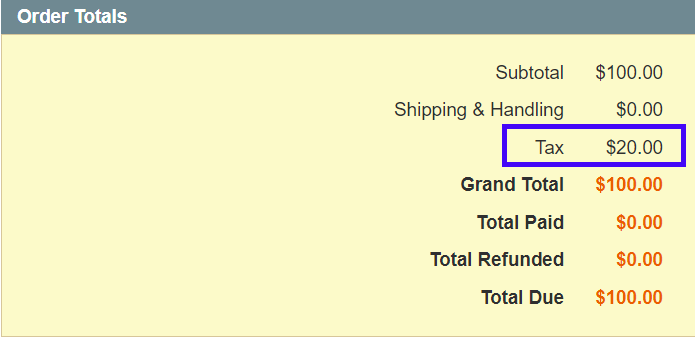
✅ Sometimes the order currency can differ from the Magento base one. In this case, Magento converts the order price to the base currency and calculates tax. Then both price and tax are converted back into the order currency. You can find them in brackets in the Order Totals.
You can configure the currency settings under Magento System > Configuration > General > Currency Setup > Currency Options.
- Tax is excluded from the item final price
Now let’s find out how tax is calculated when 20% tax is excluded from the eBay item final price.
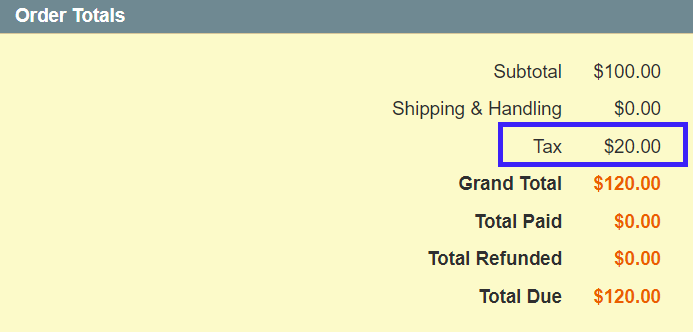
In this case, the Magento Product of $100 will be listed on eBay with a price of $120.
Both eBay and Magento orders will have a 20% tax amount.
eBay Order Totals

Magento Order Totals
Example 3. Tax Source is set to Magento #
If you set Magento as a Tax Source, any tax value returned from eBay will be ignored. Magento will use Tax Rules for tax calculation.
⚠️ If there is no appropriate Tax Rule set under Sales > Tax > Manage Tax Rules, the Magento Order will be created with the 0% tax.
Let’s configure the Tax Rule for Not Logged-in Customer Group, Taxable Goods Product Tax Class, and +20% for Florida Tax Zone/Rate.
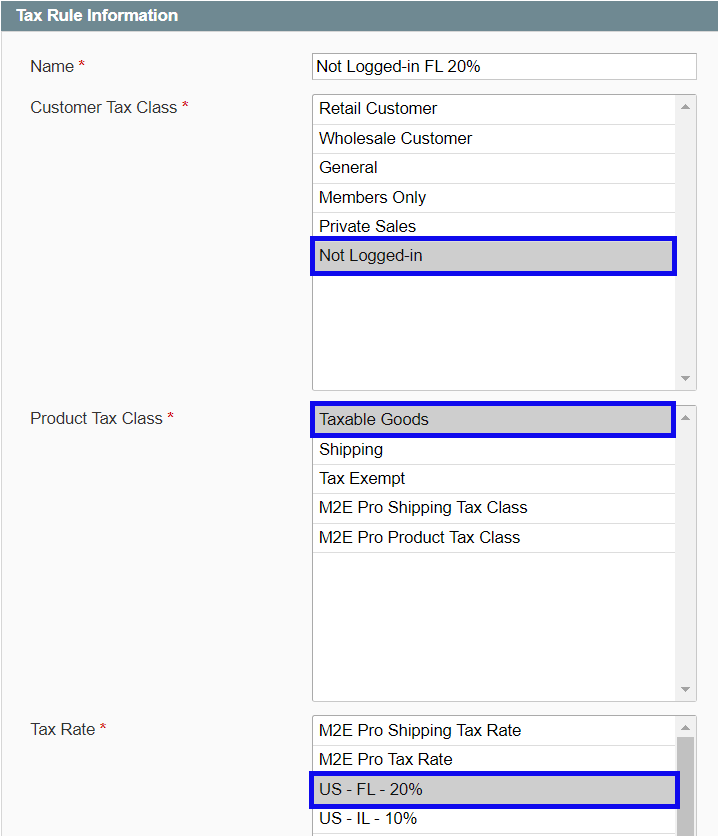
It means that the 20% tax will be applied to the Magento Order with items related to Taxable Goods purchased by the Not Logged-in customer from Florida.
✅ The proper tax amount will be applied to the Magento Order only in case the order details match all conditions provided in the Tax Rule.
The way tax is displayed in the Magento Order depends on your Calculation Settings. Configure them under System > Configuration > Sales > Tax.
- If the Catalog Prices are set to Excluding Tax, the tax amount will be added on top of the Magento Product price.
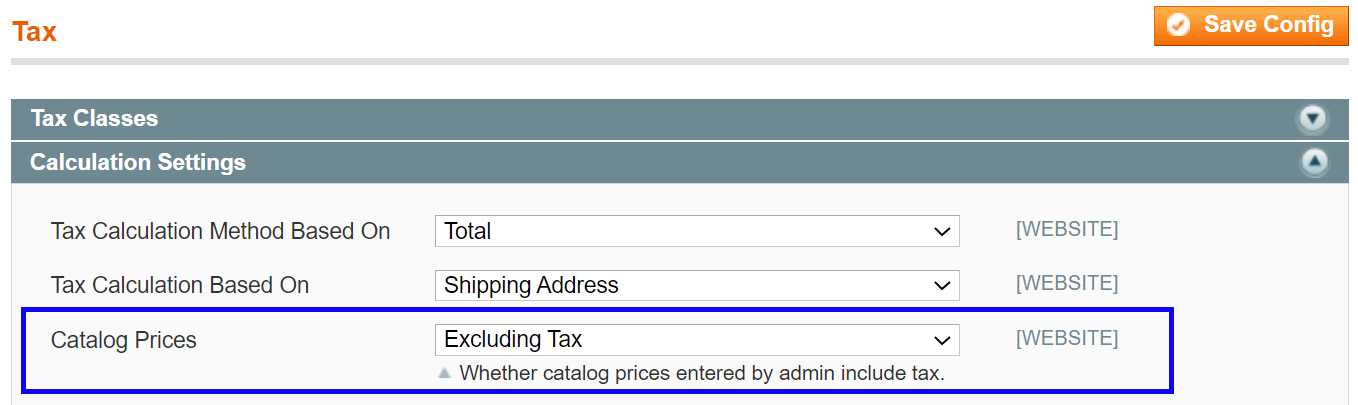
So, based on the Tax Rule above, the Magento Product of $100 will be listed on eBay at an equal price.
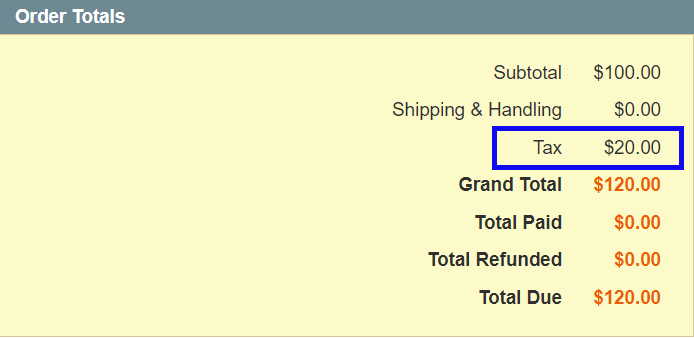
The imported eBay order will contain no tax. The Magento Order will include 20% of the tax amount.
eBay Order Totals
Magento Order Totals
- If the Catalog Prices are set to Including Tax, the tax will be calculated into the final Magento Product price.

According to the mentioned Tax Rule, the Magento Product of $100 will be listed on eBay with a price of $100.
The eBay order will be imported with 0% tax. The Magento Order will have a 20% tax amount.
eBay Order Totals
Magento Order Totals