
M2E Pro provides full order management: automatic order import, tracking number synchronization, order cancelation or refund, order status update. Let's take a closer look at order processing via the Module.
Viewing Order Details #
The primary task of M2E Pro is to maintain constant order synchronization. Once a customer places an Order, it will be imported to the Module.
All imported eBay Orders can be found under eBay > Sales. The order overview page shows the information about a buyer, purchased items, the total paid amount, current order status, eBay Order ID, and an ID of the corresponding Magento Order.

To make your search more precise, use the filter options:

⚠️ Only the Orders placed past the date you linked your eBay Account to Module are imported to M2E Pro.
⚠️ Channel orders created more than 180 days ago are archived when their total number exceeds 100,000. This means that all orders starting from 100,001 become hidden from the Orders grid and remain in the archive. To get them, please contact M2E Pro Support.
M2E Pro can redirect you to the corresponding Magento Product if you click on the item's SKU in the Orders grid. This is possible only if the ordered item is linked to a Magento Product:

eBay Order Details #
If you click on the eBay Order number in a grid, you will be able to view the details of this order.
On the eBay Order Details page, you can review information about a buyer, purchased items, their price and quantity, payment and shipment details, tax collected by eBay, etc.

For orders received from the Italian eBay site, you can additionally see the Buyer Tax ID.
Click Mark as Paid to the top right of the eBay Order Details page to confirm that you have received payment for an order:

The Order Currency will be set automatically based on the eBay site where the product was listed, as specified in the general settings used for the M2E Pro Listing.
If applicable, a clickable transaction number section that takes you to payment details will appear in the External Transactions section.
⚠️ Channel Order made for certain types of electronic devices includes the total value of charged Waste Recycling Fee from all ordered Items.
Under the Order Log section, you can track all the actions related to this order.
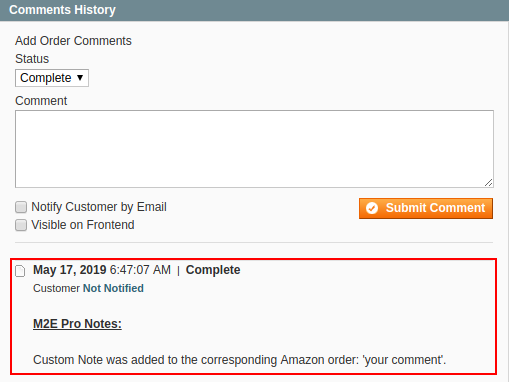
In the Comments History block, you can add comments to the imported eBay orders. Click Add Note to leave a comment. Using the Actions menu, edit or delete your notes as necessary:

M2E Pro will transfer all your notes to the corresponding Magento Order and keep them updated according to your edits:
Under the Transaction Item(s) section, you can perform linking/unlinking of the eBay Item to the related Magento Product.
⚠️ All the products in the order must be linked to a Magento product for a Magento Order to be created successfully. Find more details here.
To create the Magento Order manually, click Create Order on the top right of the eBay order page:

Magento Order Details #
If you click on a Magento Order number in a grid, you will be able to view details of a Magento Order created for the selected eBay Order.
⚠️ M2E Pro automatically creates a Magento Order and updates its status based on your settings under eBay > Configuration > Accounts > Account Configuration > Orders.
On the Magento Order Details page, you can review information about the buyer, billing and shipping addresses, payment, shipping and handling details, purchased items, their price and quantity, comments history, and orders total.
If you sell certain types of electronic devices that are taxed with the Waste Recycling Fee, and you need the Waste Recycling Fee value to be included in Magento Order, navigate to System > Configuration > Sales > Tax > Orders, Invoices, Credit Memos Display Settings section. There, you should enable the Display Full Tax Summary option.
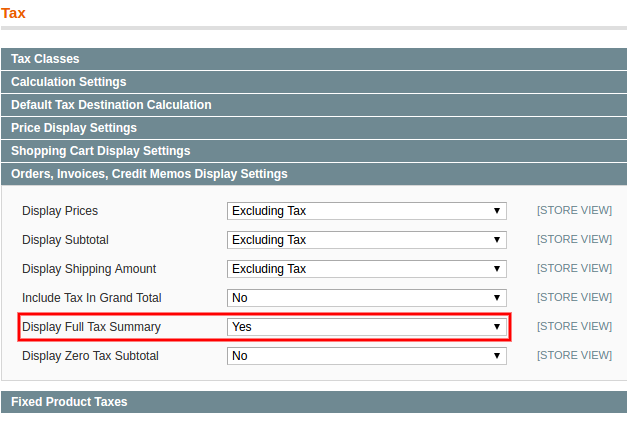
Detailed information about the Taxes applied will become available in the Magento Order.

Managing Imported Orders #
To manage imported Channel Orders manually, use the Action(s) menu:
Individual actions (applicable to a single order):

- View - displays the Order details.
- Edit Shipping Address - allows making changes to the shipping address.
- Create Order - creates Magento order for the selected Channel order.
- Mark as Paid/Mark as Shipped - changes Order status to Paid/Shipped.
Mass actions (applicable to multiple orders at once):

- Reserve QTY - reserves ordered quantity of product.
- Cancel QTY Reserve - cancels quantity reservation.
- Mark Order(s) as Shipped/Paid - changes Order(s) status to Shipped/Paid.
- Resend Shipping Information - sends shipping information again.
- Create Magento Order - creates Magento order(s) for the selected Channel order(s).
On the Orders page, you can also:
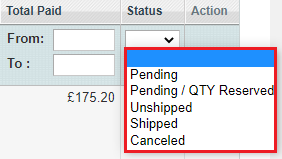
- Filter and sort eBay Orders, for example, by their Status
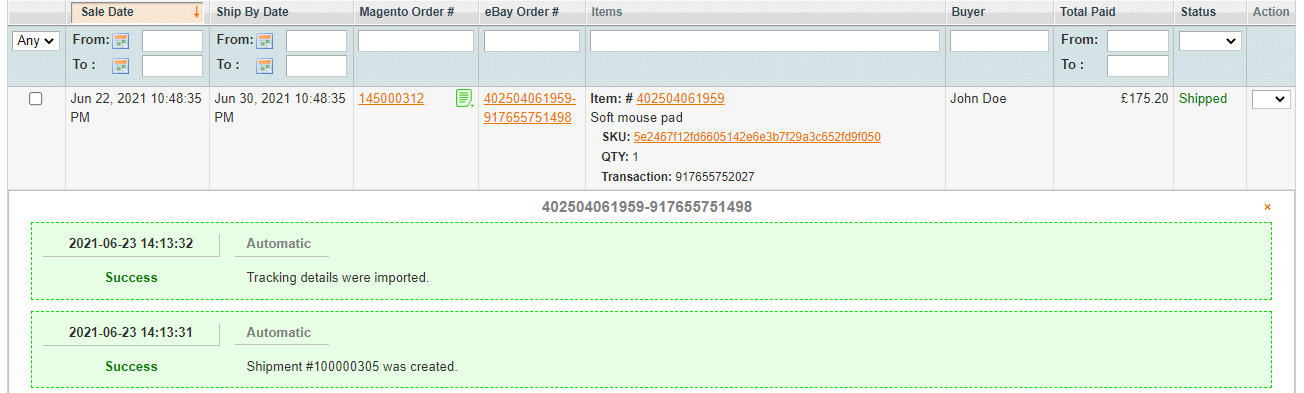
Or filter and sort eBay Orders by the Sale Date or Ship by Date values, specifying From and To dates

- Search by the particular parameter, for example, by eBay Item ID

Or by Magento Order Number

- Use a Selling Manager number of the eBay order directly from the grid

- View logs and custom notes for an Order
M2E Pro provides automatic order synchronization. Yet, there are cases when you may need to import your sales into M2E Pro manually. For that, click Order Reimport:

In the opened pop-up, select the time frame to be processed. Confirm the action by clicking Reimport. Read this article to learn when this option can be helpful and how to set it up.


