
Once you select a Category and a Product Type, you can continue with Specifics. The set of Specifics depends on the Amazon Category, so it’s important to choose the category that matches your product characteristics best.
ℹ️ Let’s say you sell socks.
If you choose the category *Clothing, Shoes & Jewelry > Novelty & More > Clothing > Novelty > Men > Socks*, you’ll see the following specifics: “Clothing Type”, “Apparel Closure Type”, etc.
Whereas if you choose the category Sports & Outdoors > Fan Shop > Sports Collectibles > Clothing & Uniforms > Socks, these specifics will be offered: “Character”, “Fabric Type”, etc.
The Classification Data section will be auto-filled based on the selected Category and Product Type. Still, you need to complete Specifics under the Variation Data manually depending on your product variations.

✅ The Specifics have a nested structure. Each Specific is located in a particular section. For example, Color can be found in Clothing -> Dresses -> Color and Computers -> Printers -> Color.
Click Add Specifics button to search for the Specifics.

Use Only Desired filter so M2E Pro shows only advised Amazon specifics but not required.
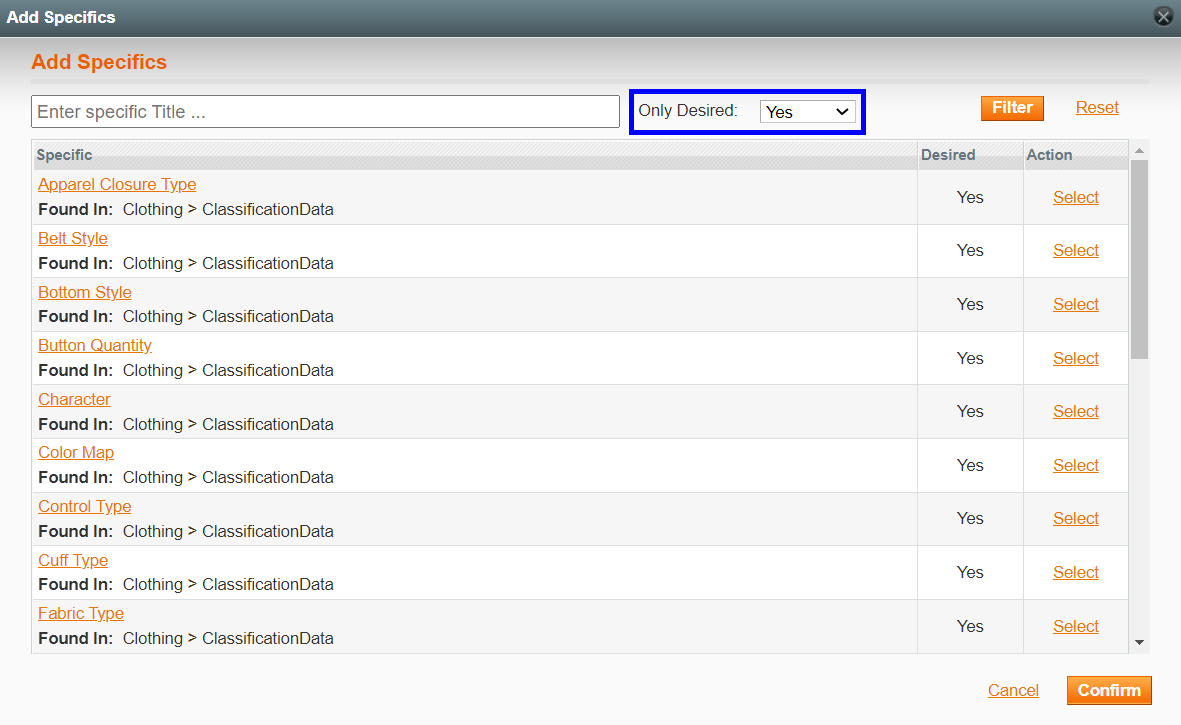
Select one or several Specifics that describes your product and click Confirm.

Now you can proceed with setting up the Specifics values.
ℹ️ Sometimes when selecting some Specifics, you may need to fill in additional related Specifics.
To set the values of the Specifics, use Recommended Values, Custom Value, or Custom Attribute.

- Recommended Values – Amazon recommends certain characteristics for your product. Choose the most appropriate one from the drop-down menu.
- Custom Value – enter the proper information about your product manually.
- Custom Attribute – use one of the Magento attribute values.
To add Specifics into a particular group, click on the “+” icon.

If you don’t know which group your Specific is located in, click Add Specifics button at the top of the page.
For some Specifics, it's possible to set several different values. For this, click on the ” 📃” icon.
ℹ️ The number of values for Specifics is limited by Amazon and depends on the selected Category and Specific itself.

⚠️ There is no way to add another value of the Specific via Add Specifics button. Once a particular Specific is selected, it cannot be found in the Search Results. The only way to add another value is to click on the icon.
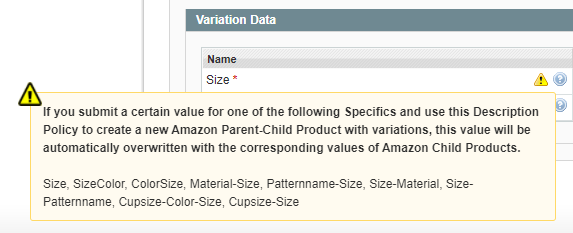
If you're going to use the Description Policy to create a new Amazon Parent-Child Product based on Magento Product, some values of Specifics can be automatically overwritten in the future. Such Specifics are marked with the “⚠️” icon.
In other words, if you select a particular value for Specific "Color" and use this Description Policy to create a new Amazon Parent-Child Product that varies by "Color" attribute, this value will be automatically overwritten with corresponding values of Amazon Child Products.
✅ If you're going to create a new Amazon product, provide as much Product Information as you can. However, if you're going to update a part of the information for an existing product, provide only the Product Information you're confident about.


